
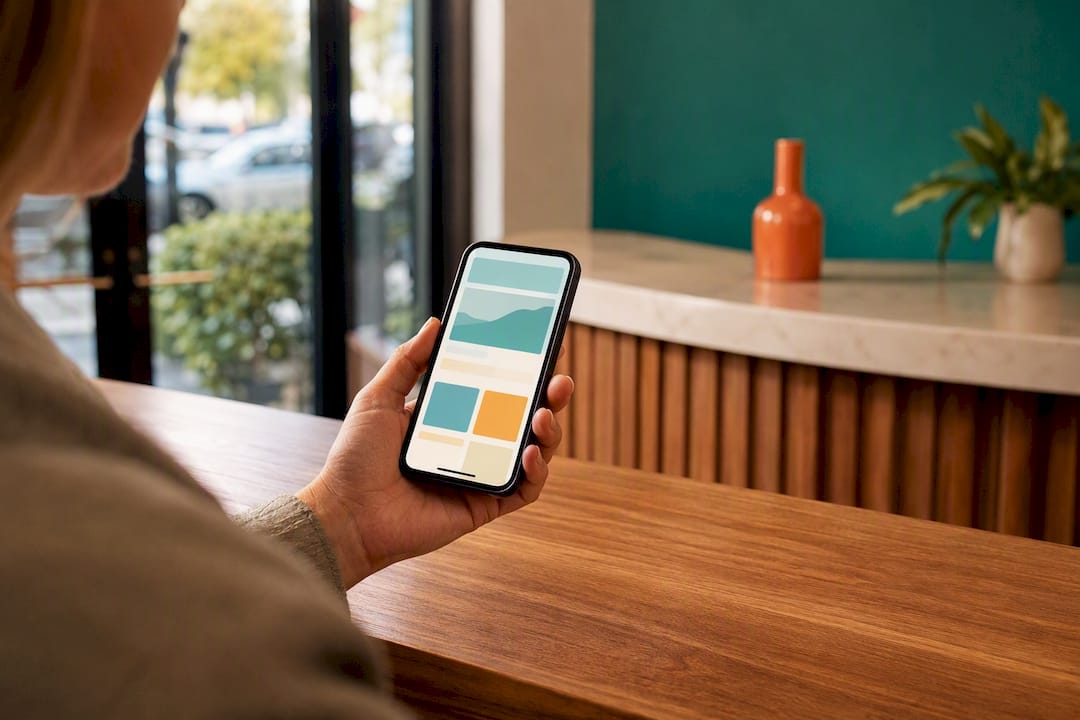
Google Business Profile posts are free updates that appear on Search and Maps, and you can publish one right now from your Business Profile under Posts. The main types are updates, offers, events and product posts, each with a call-to-action button attached. Open your profile, pick a post type, add a short line of copy and a photo, and it goes live within minutes.
TL;DR:
- Posting offers and events a few days to weeks in advance increases customer engagement and provides ample planning time for potential visitors.
- Using a mobile-safe, high-resolution image with your key message centered improves the chances of capturing attention on mobile devices.
- Consistently matching call-to-action buttons to specific goals, such as Book or Sign Up, results in higher conversion rates than generic updates.
- Managing multiple locations efficiently requires bulk creation and scheduling via APIs, supported by a structured content calendar and approval process.
- Tracking post performance with insights and UTM parameters allows businesses to measure actual impact on calls, bookings, and website traffic.
Table of Contents
- How to create, edit and delete a Google Business post
- Where do Google Business posts actually show up?
- What makes a Google Business post actually convert?
- Managing posts across multiple locations
- How do you measure whether your posts are working?
- Real examples and a checklist you can copy today
- What the conventional advice on Google posts gets wrong
- Get your Google Business posts managed properly
- Where to check the official rules yourself
- Sources
How to create, edit and delete a Google Business post
You manage posts either from business.google.com or straight from your Business Profile when it appears in Google Search results. Both paths land you in the same Posts editor, so use whichever is quicker for you. On mobile, tap your profile photo in Search, then tap “Add update.” On desktop, sign into your dashboard and look for the Posts tab in the left menu.
Google’s own support documentation confirms posts are free to create and lists updates, offers, events and product posts as the core formats, each supporting photos, video and a call-to-action button. Here’s the sequence that works every time:
- Choose your post type (update, offer, event or product).
- Write a headline and description.
- Add a photo or short video.
- Select a call-to-action button and paste in the destination URL.
- Set your start and end dates, and repeat scheduling if the post should run weekly.
- Hit Post.
Once published, a post doesn’t sit there unmanaged. You can edit or delete anything from the Posts tab, and doing so takes effect almost immediately.
A few things affect whether your post actually shows up:
- Live means the post passed review and is visible to customers.
- Pending means Google is still processing it, or your profile isn’t fully verified yet.
- Not approved means it broke a content policy and needs revising before it will publish.
Google explains this status system, along with where posts physically show up, in its guide to managing Business Profile posts. If a post has sat in “Pending” for more than a day or two, check your profile’s verification status before you assume the post itself is the problem.
Where do Google Business posts actually show up?
Visibility depends heavily on the device your customer is holding. On mobile, posts generally live in the Updates or Overview tab of your profile, and Google sometimes features events, deals or specials automatically at the top of the mobile listing without you doing anything extra. On desktop, the same content appears under a section labelled “From the owner,” tucked further down the profile.
That gap matters more than most business owners realise.
- Mobile: Updates/Overview tab, plus automatic featuring for events and offers.
- Desktop: “From the owner” section, generally lower on the page.
- Both: photos and CTA buttons render, but crop ratios differ by device.
Pro Tip: Write your lead sentence assuming the reader is on a phone glancing at a search result for three seconds. If the sales pitch doesn’t land in the first line, it won’t land at all.
Because most local searches happen on mobile, Google’s own guidance on where posts appear is the single most useful thing to read before you design your first image.
What makes a Google Business post actually convert?
A good post reads like a text message from someone you trust, not a billboard. Lead with the action you want the customer to take, not your business name; they already know who you are; they found you on Search.
- Copy: Aim for 100 to 300 characters. Put the offer, event date or key detail in the first sentence, because mobile users often see only that much before tapping away.
- Images: Use a resolution of at least 720 by 720 pixels, keep essential text centred rather than near the edges, and preview how it looks on a phone before publishing, since crops vary between mobile and desktop.
- Call-to-action: Match the button to your actual goal. Google’s post editor supports Book, Order, Shop, Learn more, Sign up and Call, and the developer documentation confirms these are the only supported action types, so don’t try to force a mismatch.
- Tracking: Add UTM parameters to any CTA URL so you can tell Google Business traffic apart from other channels in Analytics.
- Timing: Publish offers a few days before they start, so customers have time to plan, and put events up a week or two ahead with a reminder post closer to the date.
That guidance came from old Facebook ad policy and never applied here. What actually matters is that images may be cropped differently on mobile, so keep your text legible and away from the edges regardless of any percentage.
Managing posts across multiple locations
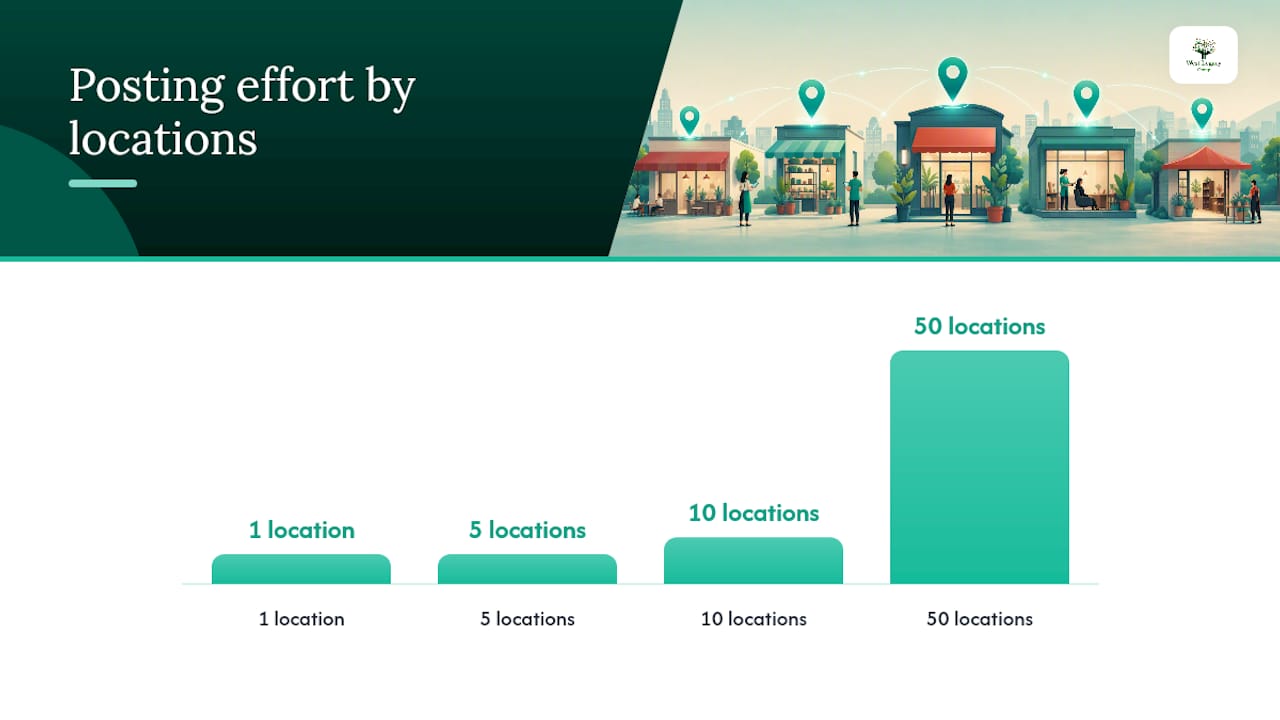
If you run one location and post occasionally, the dashboard is all you need. Multiply that across five, ten or fifty locations, and manual posting turns into a part-time job nobody signed up for.
The Google Business Profile API supports bulk creation, scheduling and repeat posting, which is where third-party scheduling tools plug in via OAuth to push the same offer or update across every location at once. Setting this up takes some initial configuration, but it pays off fast once you’re managing more than a handful of profiles.
Before you automate anything, build the groundwork:
- A simple content calendar mapping post types to dates.
- Reusable templates for recurring offers or events, so every location matches your brand voice.
- A clear posting cadence (weekly is common) rather than sporadic bursts.
- An approval step so bulk content gets checked before it goes live everywhere at once.
Get this framework right once, and multi-location posting stops being a burden. If your business already runs several profiles under one brand, our local SEO strategies guide covers how consistent profile activity feeds into broader Search and Maps rankings.
How do you measure whether your posts are working?
Posts are only worth the effort if you can tell whether they’re moving the needle. Google Business Profile’s own insights panel tracks profile views, CTA clicks, phone calls and direction requests, giving you a baseline without any extra setup.
Pair that with UTM-tagged CTA links and Google Analytics, and you can trace a post all the way to a website session or a form submission. That’s the difference between guessing a post “seemed to work” and knowing it drove 40 extra clicks in a fortnight.
| Metric | Where to find it | What it tells you |
|---|---|---|
| Profile views | Business Profile insights | Whether the post is reaching people |
| CTA clicks | Business Profile insights | Interest in your specific offer |
| Calls / direction requests | Business Profile insights | Real-world intent |
| Website sessions | Google Analytics (via UTM) | Post-to-site conversion |
Run a simple test: swap the headline or hero image on one recurring post, leave everything else identical, and compare CTA clicks over two to four weeks. That single change usually tells you more than months of unstructured posting, and it’s a habit worth carrying into your broader local search improvements too.
Real examples and a checklist you can copy today
Christopher founded West Legacy Group more than 20 years ago, building it into a small business services division offering subscription-based digital services, including local SEO and Google Business Profile management.
Two patterns show up consistently in businesses that treat posts as a process rather than an afterthought. An offer post tied to a specific date and a clear discount, published a few days ahead with a Book CTA, tends to drive noticeably more direct bookings than a vague “check out our specials” update. Similarly, an event post published a week out, then repeated closer to the date with a Sign up button, reliably lifts workshop and class registrations compared with a single one-off announcement.
Copy this six-point checklist into your content calendar:
- Pick one post type per week.
- Write the action in sentence one.
- Use a mobile-safe image.
- Match the CTA to your actual goal.
- Tag every link with UTM parameters.
- Check insights every fortnight.
What the conventional advice on Google posts gets wrong
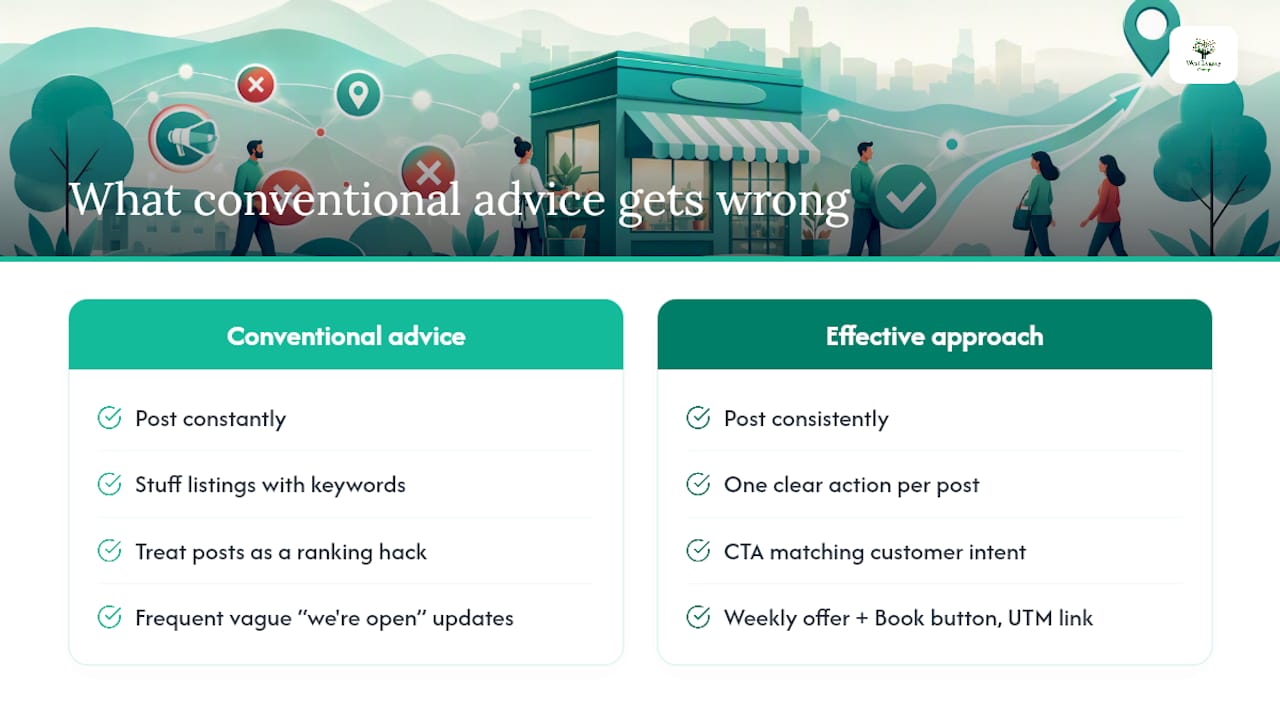
Most guides treat posts like a content marketing exercise, urging businesses to post constantly and stuff every listing with keywords. That misses the point entirely. Posts aren’t a ranking hack; they’re a conversion tool sitting in front of people who have already found you and are deciding whether to act right now.
The businesses that get real value from posts aren’t the ones posting daily. They’re the ones posting consistently, with one clear action per post and a CTA that matches what the customer is actually trying to do. A weekly offer with a Book button and a UTM-tagged link will outperform five vague “we’re open” updates every time, because it gives Google’s algorithm and the customer the same clear signal.
Where I’d push back hardest on standard advice is the obsession with image aesthetics. Legibility on a cropped mobile thumbnail matters more than polish. If your headline is invisible on a phone screen, no amount of design effort in the full image saves the post.
Prioritise measurement before volume. Most small businesses I’ve seen get this backwards, adding more posts before they’ve checked whether the last five actually drove a call, a booking or a site visit.
— Christopher
Get your Google Business posts managed properly
West Legacy Group is the practical alternative to juggling post scheduling yourself between running the business and everything else on your plate. Rather than you learning the dashboard, testing CTAs and chasing UTM reports on top of your day job, our team sets up your profile properly, builds a content calendar matched to your offers and events, and handles the posting and reporting on an ongoing basis.
That means better discovery on Search and Maps, consistent messaging across every post, and results you can actually see in a monthly report rather than a vague sense that “it’s probably helping.” If you’d rather have a professional-looking profile behind your posts before you start publishing, our small business website packages pair naturally with ongoing profile management. Book a consult with West Legacy Group to see what a managed posting plan looks like for your business.
Where to check the official rules yourself
Google updates its policies from time to time, so it’s worth bookmarking the primary sources behind this guide:
- Create posts on Google Business Profile covers post types, free access and CTA options.
- Create & manage posts on your Business Profile explains post status, visibility and content policy.
- Google Business Profile APIs developer documentation is the reference for anyone building automated or bulk posting workflows.
- For extra tactical ideas, Google Business Profile Optimization: 2026 Playbook and Google Business Profile Posts for Small Businesses are worth a read.
Sources
- Create posts on Google Business Profile – Google support
- Create & manage posts on your Business Profile – Google Business Profile Help
- Create Posts on Google | Google Business Profile APIs | Google for Developers