

Prioritise crawlability and product-page relevance before anything else, then move to performance and structured data. Run three checks right now: Google Search Console for indexing status, the Core Web Vitals report for real-user performance, and an SEO plugin like Yoast or Rank Math for on-page basics. Small stores get better results from this risk-based order than from rewriting every product description in one weekend.
TL;DR:
- Properly matching search intent to the correct page type prevents internal competition and ensures buyer traffic reaches the most converting pages.
- Consistent canonical tags and URL structures are critical to avoiding duplicate pages generated by WooCommerce variations and filter combinations.
- Optimizing product images with descriptive filenames, alt text, and responsive sizes improves both user experience and PageSpeed metrics affecting Core Web Vitals.
- A small WooCommerce store should prioritize rewriting key product pages and creating select buying guides within 90 days, rather than attempting to overhaul the entire site.
- Regular monthly checks of Search Console data help catch indexation issues, Core Web Vitals declines, and traffic trends that inform focused improvements.
Table of Contents
- What to fix on product pages first
- How do you match keywords to the right page?
- How do you stop WooCommerce creating duplicate pages?
- Should every product category be indexed?
- How should your site structure and internal links work?
- What Core Web Vitals targets should WooCommerce stores hit?
- How do you get Product schema and Merchant listings right?
- What blog content actually supports WooCommerce SEO?
- What’s the minimum monthly SEO check for a WooCommerce store?
- What does a 90-day WooCommerce SEO plan look like?
- Who’s behind this WooCommerce SEO guide?
- A realistic view of what this actually delivers
- Want help running this without doing it all yourself?
- Where to check the technical details yourself
- Sources
- FAQ
What to fix on product pages first
Product pages carry the commercial weight of your WooCommerce store, so they deserve the first pass. Get these four elements right and you have covered most of what search engines and buyers actually look at.
Title tags and H1s. Follow a consistent pattern: brand, product name, then the one attribute that distinguishes it (size, material, model number). “Nomad Leather Wallet, Tan, RFID Blocking” tells Google and the shopper more than “Wallet 4521” ever will. Keep your H1 matching the title tag closely. WooCommerce and Storefront generate this from the product title by default, so the fix usually starts with renaming the product itself, not editing template code.
Short and long descriptions have different jobs. The short description sits near the buy button and should answer the one question a browsing shopper has: does this suit me? The long description does the SEO heavy lifting, covering use cases, materials, sizing and comparisons to similar products in your range. A simple reusable structure works well: opening benefit sentence, three to five feature points, then a closing sentence addressing a common objection (fit, durability, compatibility). This avoids the trap of every product page reading like a copy-paste of the last one.
Images need real optimisation, not just upload-and-forget. Use descriptive filenames (“tan-leather-wallet-open.jpg” beats “IMG_2041.jpg”) and write alt text that describes what’s actually in the frame, not a keyword list. Serve responsive images with srcset so mobile shoppers aren’t downloading a desktop-sized hero image on a 4G connection. WooCommerce’s built-in image sizes handle much of this automatically once your theme is configured correctly.
Match what’s visible to what’s marked up. If your product page shows “$45, in stock, free returns within 30 days,” your structured data needs to say exactly that. Mismatches between visible price or stock status and the underlying markup are one of the fastest ways to lose rich result eligibility.
- Title: brand + product name + key attribute
- Long description: benefit line, 3–5 features, one objection handled
- Images: descriptive filenames, alt text,
srcsetfor responsive sizing - Price, stock and returns policy consistent everywhere on the page
A product page SEO optimisation guide walks through copy templates in more depth if you want to go further than this checklist.
How do you match keywords to the right page?
Every search term has a natural home on your site: a product page, a category page, or a blog post. Get this mapping wrong and you’ll compete against your own pages for the same query, or worse, send buyer-intent traffic to a page that can’t convert it.
- Pull your actual query data first. Search Console’s Performance report shows exactly what people typed before landing on your site. Cross-reference this with your internal site search logs (WooCommerce stores can enable this via most analytics plugins) to see what shoppers search for once they arrive.
- Sort each query by intent. A search for “waterproof hiking boots men’s size 10” is a product query and belongs on a specific product page. “Best hiking boots for wide feet” is a comparison query and suits a category page or a buying guide. “How to waterproof leather boots” is informational and belongs on a blog post.
- Assign one preferred URL per intent. Google’s ecommerce navigation guidance is explicit that product queries should map to product pages, broader commercial terms to category pages, and research questions to informational content. Avoid letting three different pages compete for the same term.
- Hunt long-tail buyer terms. Small stores rarely out-rank major retailers on “running shoes.” They can win on “trail running shoes for flat feet under $150.” Modifiers like “buy,” “best,” and “cheap” signal purchase intent and tend to carry less competition than the bare product category.
- Place keywords deliberately on the template. Primary keyword in the title tag and H1, a natural variant in the first paragraph of the long description, and secondary terms in alt text and subheadings. Don’t force the exact phrase into every field; search engines read intent, not just strings.
This workflow takes an afternoon for a store with a few dozen products and pays off every time you add new stock, because you already know where each new product or guide should sit in the structure.
How do you stop WooCommerce creating duplicate pages?
WooCommerce’s variation system, combined with filters and sorting, generates far more URLs than most store owners realise. A single T-shirt with four colours and five sizes can spin off twenty distinct parameter combinations, and if each one is indexable, you’ve created twenty near-identical pages competing against each other.
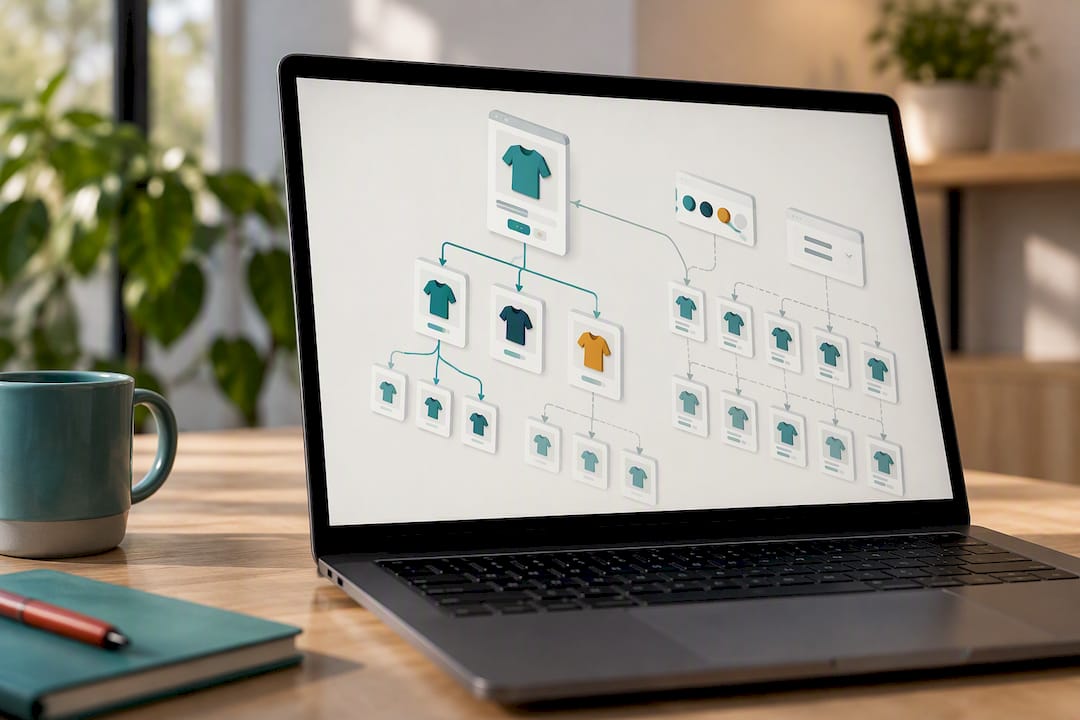
The fix is a consistent canonical strategy. Every colour or size variant should point its canonical tag back to the single parameter-free product URL, and your internal links, breadcrumbs, and sitemap should all reference that same preferred URL. Google’s guidance on ecommerce URL structure is specific on this: consistency across canonical tags, internal links, and sitemaps matters more than the exact URL format you choose.
Filters and sorting need the same discipline. A “sort by price” or “filter by colour” click shouldn’t generate a new indexable page unless it represents a genuinely distinct audience search (a dedicated “red shoes” filter page might be worth indexing; “sort ascending” never is). Audit your pagination too: paginated category pages (page 2, page 3) should each be independently crawlable but not compete with page one for the same head term.
- Canonical tags point variants to the parameter-free URL
- Internal links and sitemaps use the same preferred URL everywhere
- Filter and sort combinations stay noindex unless they serve a real audience
- Paginated pages remain crawlable without duplicating page one’s targeting
Do not block filter or parameter URLs in robots.txt as a shortcut. It feels tidy, but it stops Google from ever seeing the canonical relationship you’re trying to establish, which is the opposite of what you want.
Pro Tip: Use the URL Inspection tool in Search Console on a filtered or variant URL and check the “rendered HTML” tab. If your theme relies on JavaScript to load filter results, confirm the actual product links appear as normal crawlable anchor tags in that rendered output, not just in a script that runs after the page loads.
Should every product category be indexed?
Category pages do a job product pages can’t: they capture the broader, higher-volume searches shoppers use before they’ve settled on a specific item. “Men’s leather boots” gets searched far more often than any single product name, and a well-built category page is what earns that traffic.
Treat each category page as a landing page in its own right. Add a short block of unique intro copy above the fold, mention specific use cases or standout products by name, and link clearly to your best sellers within that range. A category page with nothing but a product grid and no context gives Google very little to work with.
Empty or near-empty categories are a genuine liability. A category with two products and no description looks thin to both shoppers and search engines. Decide deliberately: either noindex it until stock builds up, or 404 it if the category is unlikely to be restocked. Leaving it live and indexed with almost nothing on it just dilutes your site’s overall quality signal.
Pagination on category pages needs the same consistency as product variants. Use a predictable URL pattern (/category/page/2/ rather than query strings that change from session to session), and make sure each paginated page is reachable through a normal link, not just a “load more” button that requires JavaScript.
- Write unique intro copy for every category, even short ones
- Link to standout products directly from the category page
- Noindex or 404 categories with too little stock to justify indexing
- Keep pagination URLs predictable and crawlable
Category pages are also where you can direct link equity toward the products you most want to rank. A category page SEO checklist covers the filter and layout decisions in more detail if your catalogue is large.
How should your site structure and internal links work?
Google leans heavily on internal linking to decide which pages on your site matter most. A sitemap tells Google what exists; your internal link structure tells Google what’s important. Both jobs need doing, but they’re not interchangeable.
The clearest hierarchy for a WooCommerce store runs home → category → subcategory → product, with your best-selling or highest-margin products also linked directly from the homepage or a featured collection. That second link path matters more than owners expect: a product buried four clicks deep, reachable only through its category, sends a weaker importance signal than one also featured on the homepage or in a “customer favourites” block.
Build internal links in layers rather than relying on menus alone:
- Blog posts linking down into relevant categories and specific products
- Product pages cross-linking to complementary items (upsells, “goes well with”)
- Category pages linking to their standout products, not just the grid
- A featured collections block on the homepage rotating priority items
Run a quick audit: pick your ten highest-margin products and count how many crawlable internal links point to each one. If any sits below three or four, add links from relevant blog posts or category intros before assuming the problem is external.
Pro Tip: Submitting a sitemap after a big structural change is useful, but it won’t fix weak internal linking on its own. Treat the sitemap as a safety net, not the primary way you tell Google what matters.
An internal linking guide for ecommerce has worked examples of link placement if you want to see this mapped out on a real site.
What Core Web Vitals targets should WooCommerce stores hit?
Google’s Core Web Vitals thresholds are specific: Largest Contentful Paint (LCP) within 2.5 seconds, Interaction to Next Paint (INP) below 200 milliseconds, and Cumulative Layout Shift (CLS) below 0.1. These are field targets, measured from real visitors, and Search Console’s Core Web Vitals report shows exactly where your store currently sits against them.
WooCommerce stores tend to fail these thresholds for a handful of predictable reasons. Oversized hero images on category and homepage banners blow out LCP. Third-party scripts (chat widgets, review plugins, ad pixels, abandoned cart tools) stack up and delay interactivity, hurting INP. Layout shift usually comes from ads or product images loading without a reserved space, causing the page to jump around as content pops in.
Most of these are fixable without a full developer rebuild:
- Serve images in WebP or AVIF format instead of JPEG or PNG where your theme supports it
- Set explicit width and height attributes on product images to stop layout shift
- Lazy-load below-the-fold images so the initial page load isn’t waiting on everything at once
- Add a caching layer and, if your audience is geographically spread, a CDN
- Audit third-party scripts and remove anything that isn’t earning its keep
Check your field data by template type rather than as one site-wide average. Product templates, category templates, and checkout templates often behave very differently, and fixing the checkout template’s INP issue does nothing for a bloated category page hero image. If a specific template still fails after image and script cleanup, that’s the point where a developer look at theme code becomes worth the cost rather than optional polish.
How do you get Product schema and Merchant listings right?
Product and Offer structured data makes your listings eligible for star ratings, price, and availability snippets in search results, but eligibility is not a ranking guarantee. Google is explicit that structured data must mirror what’s visible on the page, and markup that contradicts the visible price or stock status risks disqualification rather than reward.
Getting this right follows a fixed sequence:
- Add the required Product and Offer properties: name, image, price, currency, availability, and (where relevant) review or aggregate rating data. Google’s Product structured data documentation lists the full property set and which ones are required versus recommended.
- Validate with the Rich Results Test before you consider the job done. This confirms Google can actually parse the markup you’ve added, not just that it exists in the page source.
- Cross-check with the generic schema validator at validator.schema.org for structural errors the Rich Results Test might not flag.
- Watch the Enhancements reports in Search Console over the following weeks to confirm eligibility holds and no errors appear after theme updates or plugin changes.
Never invent review counts, star ratings, or stock levels to make your markup look more attractive. It’s a policy risk, and shoppers who click through expecting five-star reviews and find none will bounce straight back to the results page, which does nothing good for your rankings either.
Pairing accurate structured data with a Google Merchant Center feed can extend your reach into free product listings and shopping tabs beyond the standard organic result, particularly useful for stores with a broad catalogue and tight ad budgets.
What blog content actually supports WooCommerce SEO?
Blog content earns its place when it captures research-stage traffic and funnels it toward a purchase, not when it exists purely to tick an “we blog” box. Pick topics your customers search before they’ve decided what to buy, and always link that content down into the relevant category or a handful of specific products.
Three formats do most of the work for small stores:
- Buying guides (“How to choose hiking boots for wide feet”) that link directly into the category page and two or three specific products that fit the guide’s criteria
- How-to content related to using or caring for what you sell, linking to replacement parts, care products, or accessories
- Product roundups built around a use case or budget, each entry linking to its product page
Don’t try to build fifty guides in the first quarter. Pick your five to eight highest-opportunity topics, based on what you already know customers ask about, write them properly, and revisit them quarterly to update pricing, stock links, and any seasonal detail. A small set of well-maintained guides beats a large pile of thin ones every time.
What’s the minimum monthly SEO check for a WooCommerce store?
Search Console is your operating dashboard for all of this. Run a monthly pass covering indexing status, product snippet eligibility, and Core Web Vitals field data, and you’ll catch most regressions before they cost you meaningful traffic.
- Check the Indexing report for pages that dropped out or new errors that appeared since last month.
- Inspect a representative sample of URLs, one product, one category, one guide, rather than every single page individually, since most issues trace back to a shared template rather than one broken page.
- Review the Core Web Vitals report for any template that’s slipped since your last check.
- Pull the top queries and conversions report to spot which pages are gaining or losing visibility, and act on template-level fixes rather than one-off patches.
- Resubmit your sitemap any time you’ve made a structural change (new categories, restructured menus, bulk product changes).
What does a 90-day WooCommerce SEO plan look like?
A time-boxed plan keeps this from becoming an endless to-do list nobody finishes.
- Weeks 1–2: Run the Search Console checks above, confirm your sitemap is current, review canonical tags and robots.txt for accidental blocks, and fix any small template errors you find.
- Weeks 3–6: Rewrite product pages for your best sellers first, not your whole catalogue. Optimise images, set up caching, and address the Core Web Vitals issues flagged in weeks 1–2.
- Weeks 7–12: Build two to four high-impact buying guides, start collecting and displaying customer reviews, and begin a light outreach push for backlinks if capacity allows. Monitor weekly and adjust based on what Search Console shows.
Track three metrics as your success indicators: how many product pages are indexed, impressions for your target category terms, and improvement in conversion rate on the pages you’ve rewritten.
Pro Tip: Don’t wait until week 12 to check progress. Pull Search Console data at the end of week 6 too. If impressions haven’t moved on your rewritten product pages, that’s your signal to check indexing or internal links before sinking more time into content.
An ecommerce SEO audit framework gives you a more detailed template-by-template checklist if you want to formalise this roadmap into a document your team can follow.
Who’s behind this WooCommerce SEO guide?
This guide is written by Christopher for West Legacy Group, drawing on the technical documentation and testing methods referenced throughout, including Search Console, the Rich Results Test, and Google’s own ecommerce guidance.
- Small business SEO audits, technical implementation, and content strategy for WooCommerce and Shopify stores
- Reporting built around what actually moves rankings and conversions, not vanity metrics
- Prioritisation guided by the LEGACY Framework™, which weighs crawlability, relevance, and trust signals before recommending content expansion
- Services covering audits, on-page fixes, copywriting, and ongoing reporting for stores that want a second set of hands
A realistic view of what this actually delivers
Anyone promising you first-page rankings in a month for a small WooCommerce store is either exaggerating or selling something else entirely. Structural fixes like crawlability and canonicalisation often show up in Search Console within a few weeks. Ranking movement on competitive category terms usually takes longer, often two to three months of consistent work before it’s visible in impressions data.
If your budget and time are limited, resist the urge to fix everything at once. Pick your ten best-selling products, rewrite those pages properly, fix the technical issues affecting your product template broadly, and write one or two genuinely useful guides. That narrow focus beats a scattered attempt to touch every page on the site. Run the 90-day roadmap above as written, and you’ll have enough data by week 12 to know what’s actually working for your store rather than guessing from someone else’s case study.
— Christopher
Want help running this without doing it all yourself?
A specialized service provider offers small WooCommerce store owners a way to get this work done properly without hiring a full in-house team or learning every technical detail firsthand. Rather than a one-off audit that sits in a spreadsheet, the Legacy Foundations, Legacy Growth, and Legacy Authority plans cover the audit, implementation, content, and monthly reporting cycle described throughout this guide, scaled to what a small store actually needs rather than an enterprise retainer.
If your store runs on WooCommerce specifically, the Shopify eCommerce SEO service and broader digital marketing packages cover the technical audits, structured data implementation, and category or product page rewrites this guide walks through, minus the trial and error of doing it solo. For stores that also need copywriting support for buying guides and product descriptions, copywriting services can be added alongside an SEO plan or booked separately. Pricing is available on a monthly retainer basis, varying with store size and workload. If you want a clearer picture of where your store currently stands, build your own SEO plan and request a look at your current setup.
Where to check the technical details yourself
- Google Search Central’s ecommerce SEO documentation covers site structure and crawlability in full
- Product structured data documentation and the Rich Results Test for validating your markup
- Core Web Vitals guidance for performance thresholds and field data
- The Yoast SEO plugin page on WordPress.org for plugin compatibility details, alongside Rank Math and the Storefront theme
Sources
- SEO Best Practices for Ecommerce Sites | Google Search Central
- Intro to Product structured data on Google | Google Search Central
- Core Web Vitals | Google Search Central
FAQ
What is the single most important WooCommerce SEO fix?
Crawlability and indexation come first. If Google can’t reach or properly index your product pages through ordinary HTML links and a submitted sitemap, nothing else you do on the page matters yet.
Do I need both Yoast and Rank Math?
No, one SEO plugin is enough for most WooCommerce stores. Yoast and Rank Math both handle title tags, meta descriptions, and basic schema, so pick one and configure it properly rather than running both.
How long does WooCommerce SEO take to show results?
Technical fixes like indexing and canonical issues often appear in Search Console within a few weeks, but ranking movement on competitive terms typically takes two to three months of consistent work. Stores following a structured 90-day plan usually see their first meaningful signals by the end of that window.
Should I noindex empty product categories?
Yes, categories with very little stock or content are worth noindexing until they have enough products to justify a full landing page, or 404ing if restocking is unlikely. Leaving them indexed with thin content dilutes your site’s overall quality signal.
What does WooCommerce SEO help cost if I want it done for me?
Pricing depends on the plan and scope, with West Legacy Group’s Legacy Foundations, Legacy Growth, and Legacy Authority plans covering audits, implementation, and ongoing reporting on a monthly basis. Current pricing and plan details are available directly on the site.